
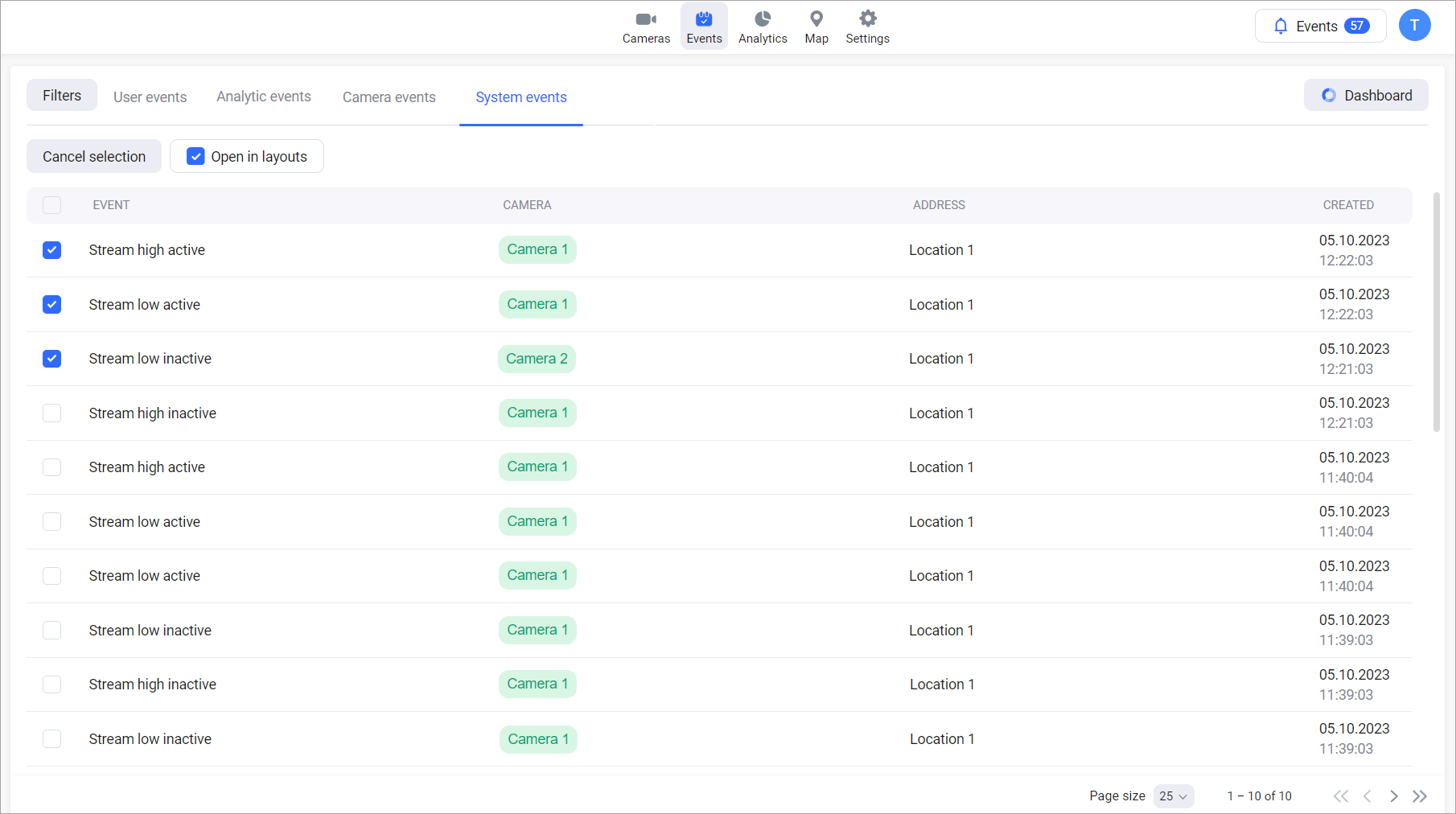
System events track changes in stream quality and overall stream status. These events include:
-
High-quality stream is active
-
High-quality stream is inactive
-
Low-quality stream is active
-
Low-quality stream is inactive
-
Stream is active
-
Stream is inactive
Each event row contains the following information:
-
An event name.
-
A camera name.
-
A camera location.
-
A date and time of when this event was created.
.png?cb=b0b7c0ae21289687b0ddf1ed78759706)
View an event in the player
To access archived footage of a specific event, open the event list. Select the name of the camera associated with the event. This will initiate playback of the archive, directly at the time the event occurred.
Open in a layout
There is an option to simultaneously view multiple events in the player. To do this, select the checkboxes of the events and Open in layout.
-
You can choose up to six events to view in the player in a layout.
-
The Open in layout button and the checkboxes are accessible in browsers at least 1024 pixels wide.
This will initiate playback of the archive, directly at the time the events occurred.
.png?cb=5f2255fda77135d05143b15ab7188cd9)