
When creating an Access point, the administrator selects its type: Entrance, Drive-in, Fixed, or Universal. Depending on the chosen type, the platform will guide the admin on which devices and how many can be connected, integrating them into a unified system. Simply link the relevant devices to the Access point.
To bind a device to an access point, open the target access point card and go to the Devices tab. Next, select Add device and choose the required option from the menu:
-
Add new device – to add a new device instance to the platform.
-
Select device from list – to bind a device from the list of devices that are already added to the platform.
Entrance zone
The Entrance zone of an access point organizes passage into a territory or premises.
Allowed devices and quantities:
-
1 intercom device
-
1 BLE device
Limitations: you can connect no more than one device of each specified type.
Drive-in zone
The Drive-in zone organizes vehicle access through gates, barriers, and other entry structures.
Allowed devices and quantities:
-
1 actuator device
-
1 BLE controller device
Limitations: you can connect no more than one device of each specified type.
Fixed zone
The Fixed zone represents an access point type that allows connecting a total of two devices belonging to different types. This zone type enables combined pedestrian and vehicle passage scenarios using various devices. Each connected device must belong to a distinct type, such as a combination of 1 intercom and 1 actuator.
Allowed devices:
-
Intercom
-
BLE device
-
Actuator devices
Limitations:
-
You can connect any two device types from the specified list.
-
The total number of devices cannot exceed two.
Universal zone
The Universal zone is the most flexible type of access point, designed for building complex access control scenarios. This type allows you to add any number of devices and their combinations:
-
Intercom
-
BLE device
-
Actuator devices (planned in future releases)
How device addition works
-
For example, if an Entrance zone access point already has an intercom connected, you can only add one more device, and it must be a BLE device.
-
If an access point (other than a Universal zone) already has two devices connected, the system displays a message such as: "No available device types."
Add a new device
You can add a new device to the platform only if you have an available license with the matching licensing parameter.
To bind a device to an access point, open the target access point card and go to the Devices tab. Next, select Add device and choose Add new device from the menu. The system will open a setup form corresponding to the type of device you want to add to the platform.
Once the device is added successfully, it is registered in the system and linked to the selected access point. One license with the corresponding licensing parameter is marked as used. The Device added successfully notification is displayed, and the device detail card opens.
Select a device from the list of devices added to the platform
To bind a device to an access point, open the target access point card and go to the Devices tab. Next, select Add device and choose the required option from the menu: Select device from list – to bind a device from the list of devices that are already added to the platform.
From the Device type drop-down, select a relevant device type.
Once you select the device type, the Device drop-down becomes active. The drop-down displays a list of devices of the selected type that are not currently linked to any other access point. The list displays the name and UUID for each device. You can search by device name and UUID.
Select the relevant device and Attach.
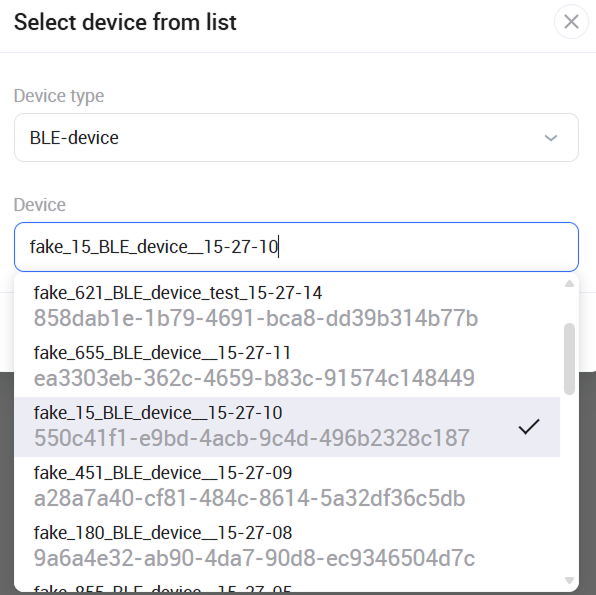
This links the device to the access point and displays a notification stating that the device is successfully added to the access point.
Depending on the type of added device, the system generates a Device added to access point event containing the user login, access point UUID, and device UUID, and logs it in the corresponding section:
-
For intercoms: Devices > Intercoms > intercom details page > Events > User actions tab
-
For BLE devices: Devices > BLE devices > BLE device details page > User actions tab
-
For actuators: Devices > Actuators > actuator details page > User actions tab.
Unlink a device from an access point
You can unlink a device from an access point in several sections of the admin panel:
-
From the access point profile on the Devices tab. Find the Unlink device button in the row context menu by selecting the vertical ellipsis icon to open the context menu.
-
When deleting an access point.
-
From the intercom profile on the General data tab.
-
From the BLE device profile on the General information tab.
-
From the actuator profile on the General information tab.
Confirming the action triggers equipment reconfiguration.
Unlinking BLE devices:
-
System erases all previously added permanent and temporary keys.
-
Corresponding key licenses become available.
-
Related service access is revoked for users within this access point.
Unlinking intercoms:
-
System removes all users from apartments, along with configured video analytics, keys, temporary access codes, and the apartment range.
-
Intercom profile hides the following tabs: Key list, Apartments, Temporary codes, Intercom configurations.
-
Settings on the General data and Settings tabs, as well as SIP server parameters, remain intact.
Unlinking actuators:
-
System clears the list of users linked to the device.
Event creation
Unlinking a device creates an Unlink a device from an access point event:
-
For Intercoms: system logs the event in Devices > Intercoms > Intercom card > Events > User actions tab. The event includes the user login, access point ID, intercom ID, and action type.
-
For BLE devices: system logs the event in Devices > BLE devices > BLE device card > User actions tab. The event includes the user login, access point UUID, device UUID, and action type.
-
For Actuators: system logs the event in Devices > Actuators > Actuator details page > User actions tab. The event includes the user login, access point UUID, device UUID, and action type.