
The Links tab enables you to generate digital access links for unlocking doors remotely. This feature provides a convenient way to grant entry to guests, couriers, or service personnel without the need to manually answer an intercom call.
Add a link
-
Navigate to the Links tab of the selected intercom.
-
Select the New link button to initiate link generation.
.png?cb=b2ba90801debee1b0b197376a5ca1e81)
-
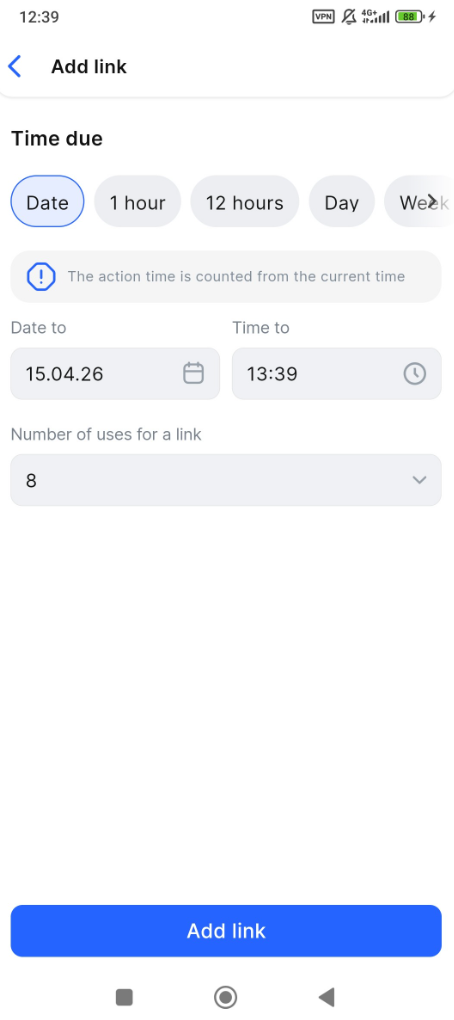
On the opened page, specify access settings:
-
Under Time due, specify the validity period for this link:
-
Select Date and choose a date and time until which the link will remain active.
-
Alternatively, choose a quick preset: 1 hour, 12 hours, Day, or Week.
-
-
Optionally, from the Number of uses for a link drop-down, select a value to limit how many times the door can be unlocked via this link. Selecting the dash (-) value removes usage restrictions, allowing the link to be used indefinitely until it expires.
-
Select Add link to complete the link creation. The generated link will be listed on the Links tab.
-
The countdown to link expiration begins automatically once the link is generated.
-
The generated link expiration time can’t be edited.
-
The link will be deleted from the list once expired.
View and refresh the Links tab
The Links tab lists all generated access links. Each entry includes the following information:
-
Time remaining until expiration
-
Usage counter:
-
With a limit: displays as 4/8, meaning 4 uses have occurred out of a total of 8.
-
Without a limit: no counter is shown, indicating the link allows unlimited unlocks until it expires.
-
Swipe down to refresh. This updates the expiration status and usage counters for all links in the list.
.png?cb=f3112f31136674fcf6a5d76043075f79)
Share a link
To share a link with a guest, follow these steps:
-
Tap the relevant link.
-
In the bottom sheet that opens, select an action:
-
Copy link. The link will is copied to the clipboard on your mobile device. You can then paste it and share it with a third-party app available on your device.
-
Share link. Instantly sends the link through your preferred messaging or social apps.
To cancel sharing, select Cancel.
.png?cb=0d912db28e3a2400a9fb258fa9d59263)
Delete a link
You can delete an individual link, multiple links, and all links simultaneously from the Links tab.
To delete an individual link, follow the steps:
-
Tap the context menu icon (⋮) of the relevant link.
-
From the opened menu, select Delete links.
-
In the confirmation dialogue, confirm the action with Delete. To cancel the action, tap Cancel.
To delete all links or several individual links, follow these steps:
-
On the Links tab, select the Delete icon.
-
To select all links in the list, choose Select all from the upper-left corner. To select individual links, choose the relevant checkboxes.
-
Select Remove selected.
-
In the confirmation dialog, confirm the action with Delete. To cancel the action, choose Cancel.
Should a guest try to access a deleted link, their browser will display a 404 error, indicating that the page is no longer available.
.png?cb=982a79b3113a359453ee9bf4966b6aa9)
How guests use links
Once the guest receives the link, they can access it from their mobile device or computer. The link will automatically open in the device's default web browser.
On the opened page, the guest selects Open to unlock the door to enter the premises.
The initial page contains a counter showing the remaining attempts to open the door. For example, Opens remaining: 4/8 means the guest can use the provided link 4 more times out of 8 available in total.
If there was no limit set for the provided link, the counter isn’t displayed.
.png?cb=445ebe3dfd75f5036f937a95bd61dbe5)
Once the door is unlocked, the guest is informed and the counter on the page is updated with the remaining attempts.
.png?cb=462427a80b4c3a0cb500f578dd7a5554)
If technical or network issues prevent the door from opening, an error message will prompt the guest to try again. Select the button again to attempt unlocking the door again.