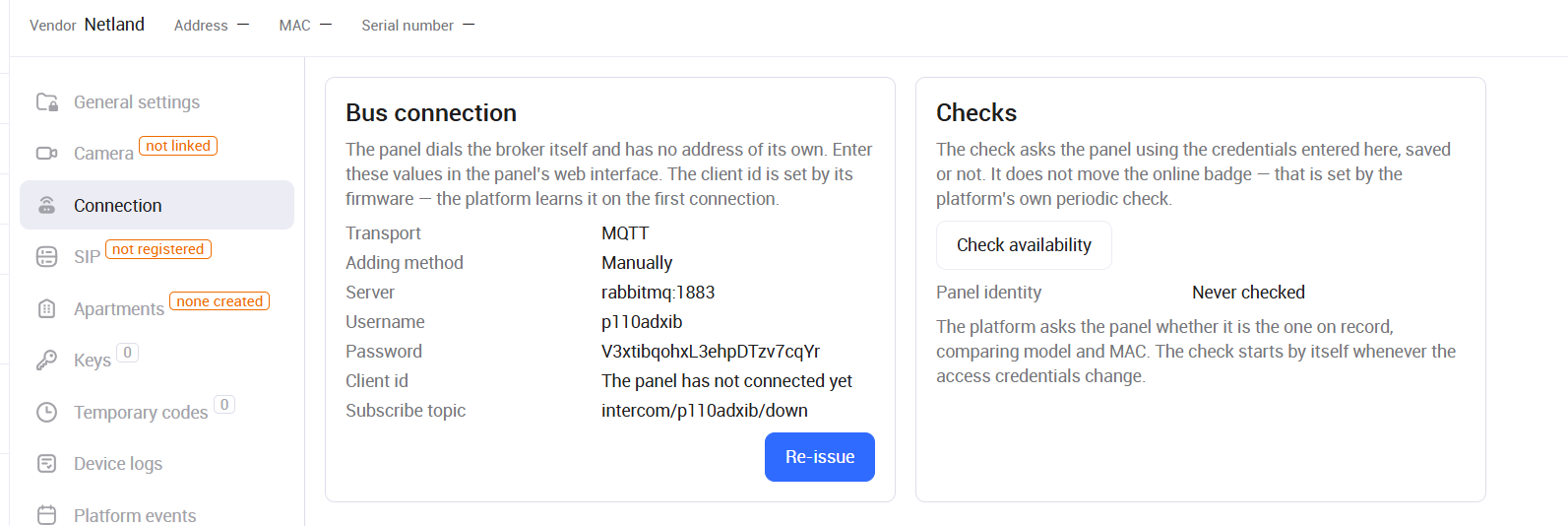
The Connection tab is used to configure the connection to the intercom panel and check whether the panel is reachable.
The tab is available for intercoms from all vendors except SIP. Settings can't be changed when the intercom is disabled or deleted.
The administrator needs the Update intercom permission to change connection settings.
Depending on the connection method, either Access credentials or Bus connection is displayed.
Access credentials
This section is displayed for intercoms connected over HTTP and contains the following fields:
-
Protocol – the protocol used to connect to the panel: HTTP or HTTPS.
-
IP address – the panel's network address in IPv4 format.
-
Port – the connection port, from 1 to 65535.
-
Username – the account name used to connect to the panel.
-
Password – the account password.
The Protocol, IP address, and Port fields are required.
To change the access credentials, enter the new values and select Save. Saving automatically starts a panel identity check.
Changing the IP address of an installed intercom displays a warning. Use the separate Replace panel function to replace the physical panel.
Bus connection
This section is displayed for intercoms that connect over MQTT.
It contains the following connection settings:
-
Server – the address of the MQTT broker the panel connects to.
-
Client id – the panel identifier assigned by its firmware. Before the first connection, The panel has not connected yet is displayed.
-
Subscribe topic – the MQTT topic used to receive messages.
-
Username and Password – the credentials used to connect to the broker.
These values can be viewed and copied, but can't be edited manually. If credentials haven't been generated, Not issued is displayed.
To configure the connection:
-
Select Issue credentials.
-
Copy the generated values.
-
Enter them in the intercom panel's web interface.
To generate new credentials, select Re-issue and confirm the action.
Once new credentials are issued, the previous password stops working. The MQTT connection remains unavailable until the new credentials are entered in the panel's web interface.
Checks
This section checks whether the panel is reachable and whether the connected device matches the intercom information stored in the platform.
Check availability – tests the connection to the panel using the entered credentials, including changes that haven't been saved.
Possible results:
-
The panel responds with these credentials – the connection was established.
-
The panel doesn't respond with these credentials – the connection couldn't be established.
This check doesn't change the intercom's current availability status. The platform determines that status through periodic checks.
Check identity – starts a check to determine whether the connected panel matches the device information saved in the system. This check also runs automatically when the access credentials change.
Possible statuses:
-
Never checked – the check hasn't run yet.
-
Panel matches – the device matches the saved information.
-
Different panel responds – a mismatch was detected.
-
Panel didn't respond – the device didn't respond to the check.
The date of the last check is displayed next to the status under Checked.
The identity check runs in the background. Once it starts, refresh the intercom detail card to view the result.