
The Camera events users can manage the events detected by the camera's built-in analytics. This includes Agent-integrated cameras that feature built-in analytics functions.
The tab lists the following events:
-
SMTP motion detection
-
Events received from cameras via the ONVIF protocol (Events detected by the camera's native, built-in analytical functionality):
-
Motion detect
-
Tamper detection. Image too blurry
-
Tamper detection. Image too dark
-
Tamper detection. Image too bright
-
Tamper detection. Global scene change
-
Event from external system
-
Event to external system
-
Configuration changed
-
On the Camera events tab, you can find the following event management options:
-
Filter events
-
Access details and management options for a detected event
-
Navigate to the player to play back the recorded event
-
Manage an event screenshot
-
-
Set up analytics event notifications for both general alerts and specific cases. For details on how to manage the Analytics-triggered notifications, see the Set up Analytics-triggered push notifications page.
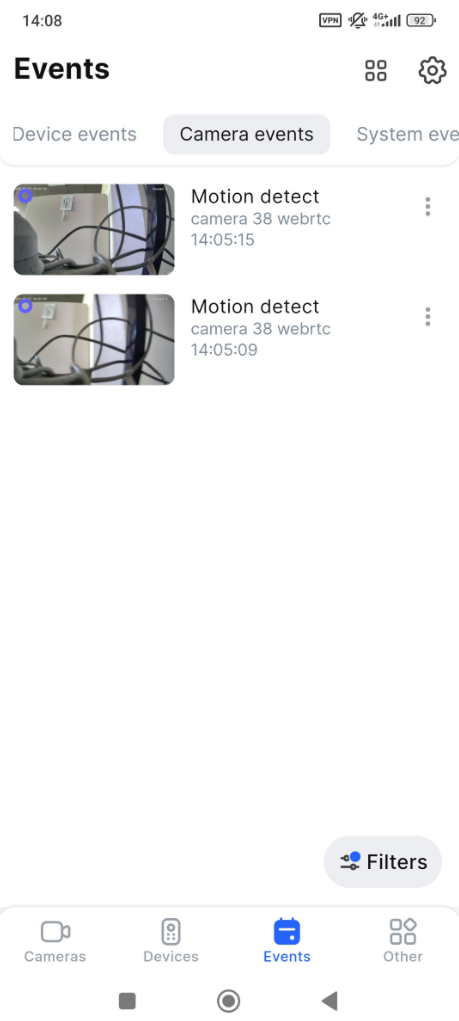
Each event contains the following details:
-
Event name.
-
Camera name
-
Date and time of the event.
-
Image from the camera captured at the moment of the event.
-
The option to enable and disable push notifications on detected events for a specific camera that can be accessed via the context menu icon
.png?cb=fb3a09f62198632352f1a8973b523987)
Filter events
You can filter events on the Camera events tab in the following way:
-
Tap Filters.
-
On the opened Filters tab, set all relevant filters:
-
A filtering period: Today, Yesterday, Week, 30 days, or tap Period to customize with a specific date range.
-
Under Camera events filter, tap Add events to additionally set the event filters. On the opened tab, select events to filter. Once the filters are selected, tap Select. To cancel this filter, tap Clean.
-
Under Cameras, tap Add cameras to specify the exact cameras to filter the events. From the opened list, choose cameras and tap Add. To cancel this filter, tap Clean.
-
Once filters are set, tap Apply filters. Tapping Clean at the top left will clean all the set filters.
Access details and management options for a detected event
Locate the detected event in the list. Tap the event to open the bottom sheet and access its management options. The bottom sheet features the following event details: the camera name, camera address, the Watch in player option, and the horizontal ellipsis icon to manage the screenshot.
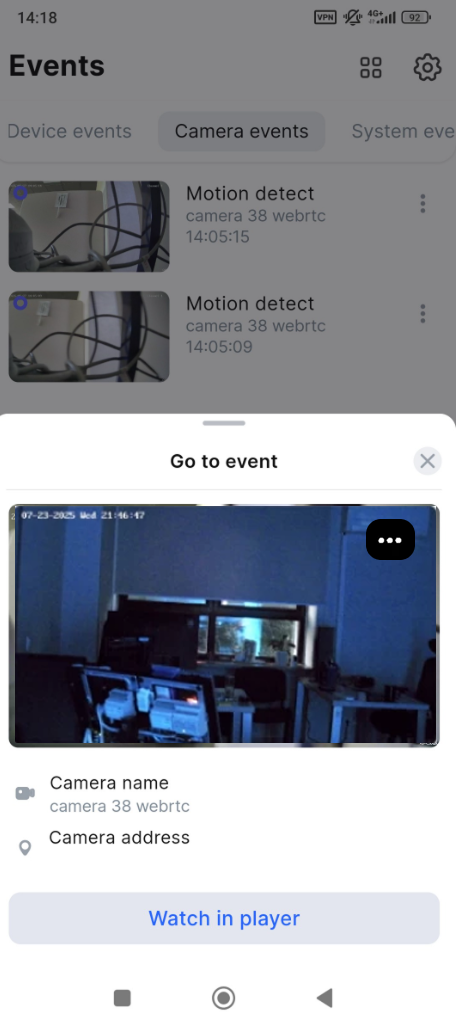
Play back the recorded event
You can open the event in the camera player if the relevant video footage segment is still available in the archive.
To watch an event in the player, follow the steps:
-
In the event list, tap the relevant event.
-
On the opened tab, select Watch in player.
-
As a result, you navigate to the camera player in Archive mode directly to the event. For details on how to view archive footage, see this View camera footage in Archive mode article. If the relevant video footage segment is no longer available in the archive, you’ll see a revenant notification. In this case, you will remain on the Camera events tab.
You can also access event’s video in the player via the camera events feed. For details, see the Camera events feed article.
Manage an event screenshot
To manage an event screenshot, on the bottom sheet, select the horizontal ellipsis icon .png?cb=fa502186a65859c3ea24bad702f296da)
-
Save to my screenshots. The screenshot will be automatically saved in the app. You can find the screenshots saved in this way on the Other tab > My screenshots and videos.
-
Save to gallery. The screenshot is automatically saved to the mobile device gallery.
-
Copy to clipboard. The screenshot is automatically copied to your clipboard, making it easy to paste it into other apps or messages without saving it to your device.
-
Share. By using this feature, you will send the screenshot directly to messaging apps, email, or cloud storage without saving it to your device gallery.
-
To cancel saving a screenshot, close the tab or select Cancel.
Enable or disable notifications for a specific camera
You can manage push notification settings directly from the context menu of a detected event. This can be done from the Camera events tab to manage notifications from specific cameras while managing an individual event.
For this, select the 