
On the User events tab of the Events section, the mobile app user can view and manage the user events.
The User events tab lists the following user events:
-
Events that were added by the user while watching the video footage in the player from the mobile app and from the web interface. For details on how to add a user event in the mobile app, see the Add and manage user events article.
-
Intercom answered and missed calls.
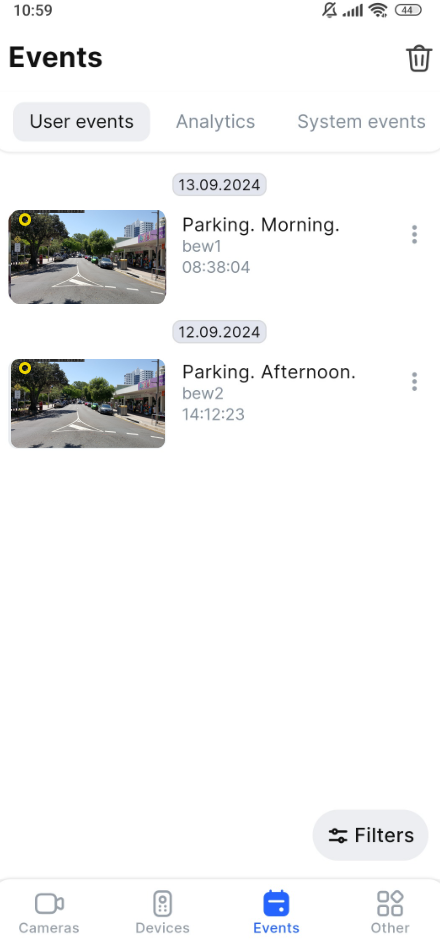
The User events tab features the following tools to manage the events:
-
Filter events
-
Watch an event in the player
-
Manage an event screenshot
-
Edit an event
-
Delete an event
Users can create and manage user events while watching the camera player. For details, see the Add and manage user events article.
Filter events
You can filter events on the User events tab in the following way:
-
Tap Filters.
-
On the opened Filters tab, set all relevant filters:
-
A filtering period: Today, Yesterday, Week, 30 days, or tap Period to customize with a specific date range.
-
Under User events filter, tap Add events to additionally set the event filters. On the opened tab, select events to filter: Custom (the user events add by you), Intercom missed call, Intercom answered call. Once the filters are selected, tap Select. To cancel this filter, tap Clean.
-
Under Cameras, tap Add cameras to specify the exact cameras to filter the events. From the opened list, choose cameras and tap Add. To cancel this filter, tap Clean.
-
Once filters are set, tap Apply filters. Tapping Reset at the top left will clean all the set filters.
Access details and management options for a detected event
Locate the detected event in the list. Tap the event to open the bottom sheet and access its management options. The bottom sheet features the following event details: the camera name, camera address, the Watch in player option, and the option to save and manage the screenshot.
.png?cb=2d37487f866f58c072cd18d0bf2c6e24)
Watch an event in the player
You can open the event in the camera player if the relevant video footage segment is still available in the archive.
To view an event in the player, follow the steps:
-
In the events list, tap the relevant event.
-
On the opened tab, select Watch in player.
-
As a result, you navigate to the camera player in Archive mode directly to the event. For details on how to view archive footage, see this View camera footage in Archive mode article. If the relevant video footage segment is no longer available in the archive, you’ll see a revenant notification. In this case, you will remain on the User events tab.
For intercom cameras with archive viewing restrictions set by the administrator, archive access is available as follows:
-
For an answered call – 15 seconds before a call, during a call, and 30 seconds after the call is ended.
-
For a call that wasn’t accepted – 15 seconds before a call and 30 seconds after.
For details, see the View and edit an intercom section > the General data tab of the Administrator guide.
-
To return from the player back to the User events tab, use the return icon
You can also access event’s video in the player via the camera events feed. For details, see the Camera events feed article.
Edit an event
To edit a user event, the user should have the permission to view and update marks. The administrator manages this permission.
For details on how to create and manage user events, see the Add and manage user events article.
Delete an event
To delete a user event, the user should have the permission to view and delete marks. The administrator manages this permission.
For details on how to create and manage user events, see the Add and manage user events article.
Manage an event screenshot
To manage an event screenshot, on the bottom sheet, select the horizontal ellipsis icon on the image. On the tab that opens, select an option to manage the screenshot:
-
Save to my screenshots. The screenshot will be automatically saved in the app. You can find the screenshots saved in this way on the Other tab > My screenshots and videos.
-
Save to gallery. The screenshot is automatically saved to the mobile device gallery.
-
Copy to clipboard. The screenshot is automatically copied to your clipboard, making it easy to paste it into other apps or messages without saving it to your device.
-
Share. By using this feature, you will send the screenshot directly to messaging apps, email, or cloud storage without saving it to your device gallery.
-
To cancel saving a screenshot, close the tab or select Cancel.