
Save each setting individually using its respective Save button.
In this subsection, the following settings are configured:
-
Under Permission settings, the administrator sets the number of simultaneous login sessions for client applications. These settings are configured individually for each type of user: system users (created by administrators), subusers, and billing users. Administrators can set a limit on the number of sessions for users depending on the system component: an intercom and video surveillance. Video surveillance includes Analytics, Bridges, cameras with the integrated Agent. By default, these settings are applied to all users. You can configure the number of sessions within the range of 0 (minimum) to 100 (maximum).
The administrator can configure session limits for an individual user in Administration > Users within the user card. For details, refer to the relevant User management documentation page.
The individual session limit overrides the global default settings.
-
Under Intercom settings > Limit the validity period of the client intercom temporary code, the administrator can set the maximum number of days for which a user creates a guest code and a guest link in the mobile app for their guest to access premises via intercom. This value restricts the range of dates available in the calendar when a user selects the validity period for a temporary code or link.
-
Logging levels of actions for each type of user: system users, sub-users, and billing users.
-
Default access rights configuration for the system and billing users.
Access rights settings are assigned by default to new users upon their first login. Subsequently, access is personalized in the user's profile.
-
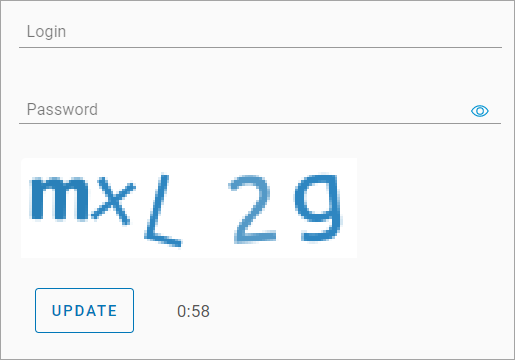
Under Login page settings, administrator can enable captcha display. When this setting is enabled, users will enter an alphanumeric code on the authorization page on the web and mobile apps. The code consists of Latin upper and lowercase letters (excluding the letter 'O') and digits from 1 to 9.
-
Under Setting up automatic adding of cameras to the map, administrator can enable the automatic placement of cameras on the map. This setting applies to cameras added to the platform through auto-provisioning for the first time. When this setting is enabled and the camera's geographic coordinates are specified during setup, the camera will automatically appear on the map in the sections:
-
Cameras > Map
-
Cameras > View a camera > the General data tab
-
The system administrator can edit and delete the camera location on the map.