
Intercom web interface settings
The intercom web interface provides access to various device settings. During the initial intercom setup and subsequent integration with the platform, the administrator needs several details from the device web interface.
Once the initial setup is complete, the administrator needs the following information to integrate the intercom with the platform:
-
Username used to sign in to the intercom web interface.
-
Password used to sign in to the intercom web interface.
-
IP address of the intercom.
-
Video stream URLs – camera stream URLs used to receive video from the intercom.
Find the intercom panel IP address
The IP address of the intercom panel is required for the initial intercom setup through its web interface.
-
On the intercom panel, press and hold the designated button

-
In the system menu, use the navigation buttons to select VIEW. Confirm the selection.
-
In the menu that opens, select NETWORK and press the confirmation button.
-
Find the LOCAL IP parameter. The displayed value is the IP address of the intercom panel. For example: 192.168.0.14.
Use the following buttons to navigate the menu:
-
* – move up or left
-
# – move down or right
-
-
C – return to the previous menu
Sign in to the intercom web interface
-
Open a web browser on the computer.
-
Enter the IP address of the intercom panel in the browser address bar. Press Enter on the keyboard.
-
On the login page, enter the username and password. The password can be changed after signing in.
-
Default username: admin
-
Default password: admin123
-
-
Select Log in. The intercom panel web interface opens.
Settings
This section describes the initial device configuration and password change procedure. For detailed information about all device settings, see the user manual supplied with the device.
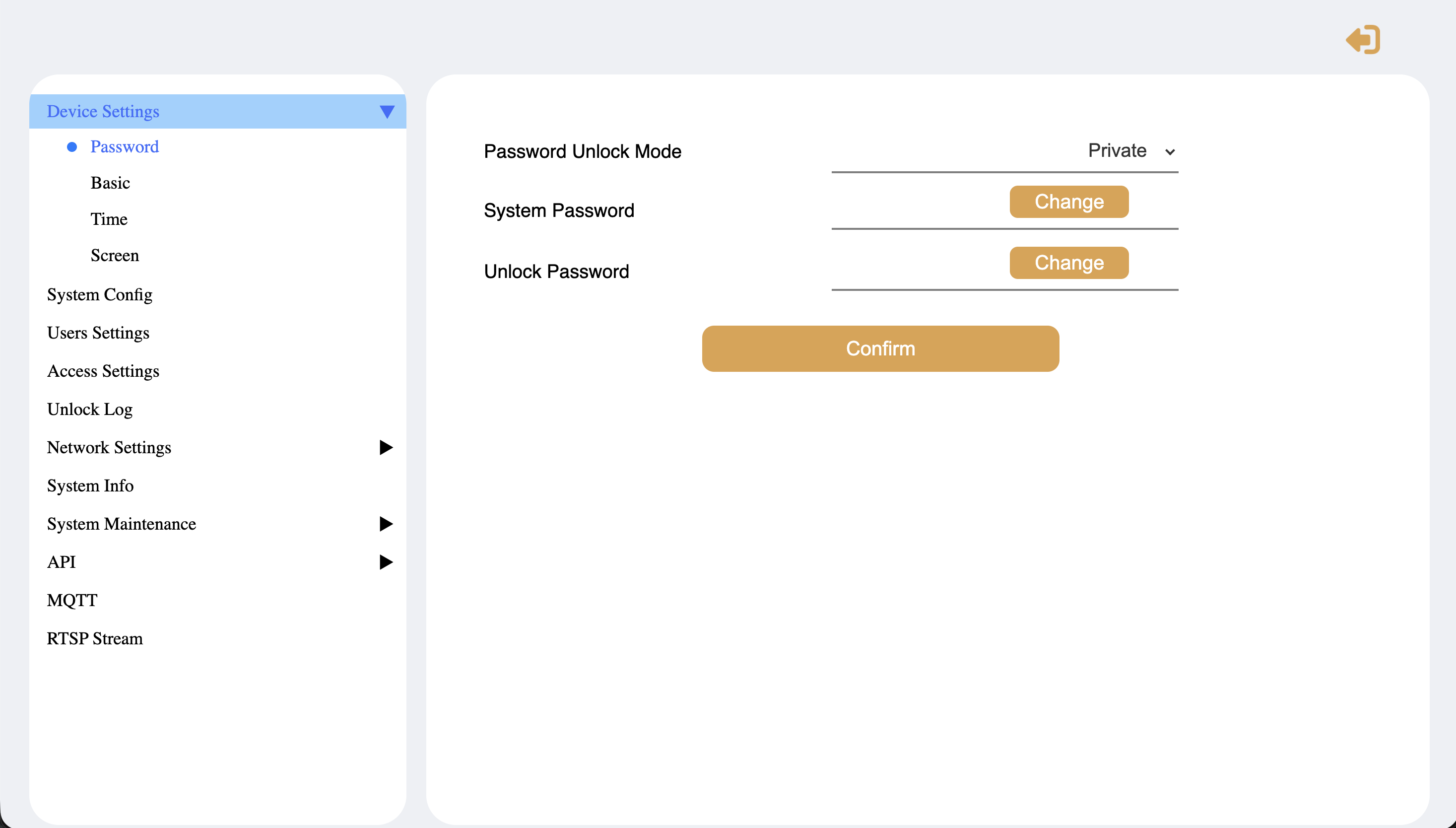
Password change
-
Go to Settings > Password.
-
Enter the new passwords.
-
-
Default system password: 000000
-
Default unlock password: 123456
-
-
Confirm the changes.
Configure the network
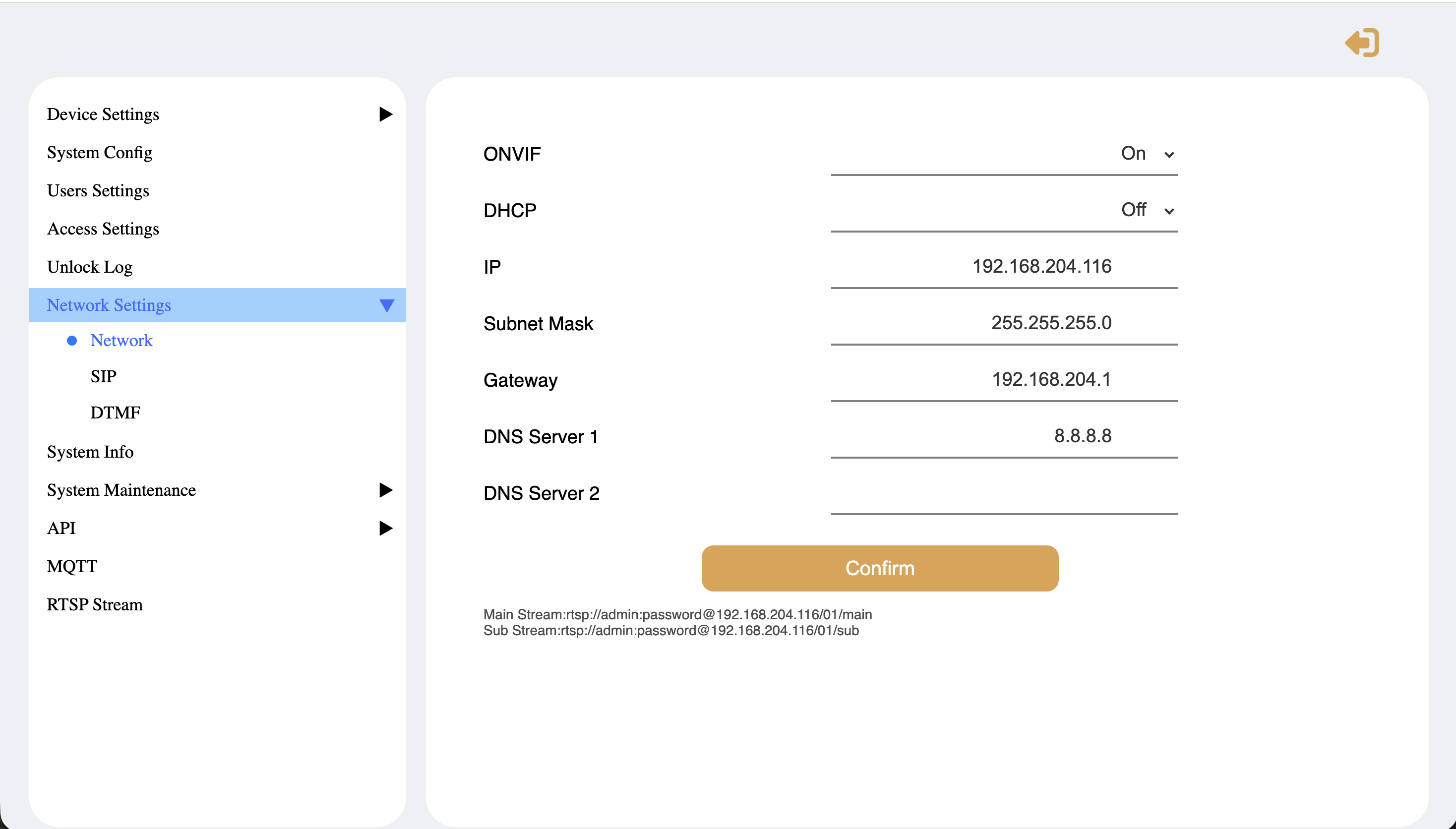
In Network settings, specify the required parameters:
-
ONVIF
-
DHCP
-
IP address
-
Subnet mask
-
Gateway
-
DNS server
The same page provides an example of the correct format for camera stream URLs.
Integration with the platform
For detailed instructions on integrating the intercom with the platform, see the Administrator guide. Intercom documentation page.