
Event logs
In the Events section, you can track the event logs, which are displayed on the following tabs:
-
System events:
-
Activity change for low/high quality streams.
-
Camera status changes.
-
-
User events contains the events added manually by the user when viewing camera archives.
-
Camera events contains the events of motion detection SMPT; events from the ONVIF-embeded cameras.
-
Events from devices contains the events from various third-party systems and devices.
-
Analytics events lists Analytics events. Analytics events are system‑registered events that occur within Analytics cases added through the Desktop client and the Web interface.
.png?cb=d0c3d2fd1bc8c73eac764a993a5752dc)
Filters
To quickly search for events, filters are provided on each tab. Depending on the selected tab, filters may differ.
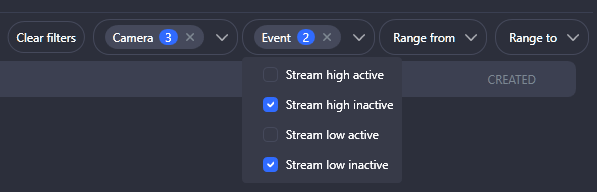
Filters allow you to refine the events you see by specifying criteria, such as:
-
Specific cameras.
-
Event type. Event types depend on the selected tab.
-
Analytics type and category – for the Analytics events.
-
Certain periods. Filling in both fields is optional: you can only specify the start date or end date of a period.
The display of event types depends on the user's access rights.
The list is instantly filtered when at least one filter is applied.
Generate a report
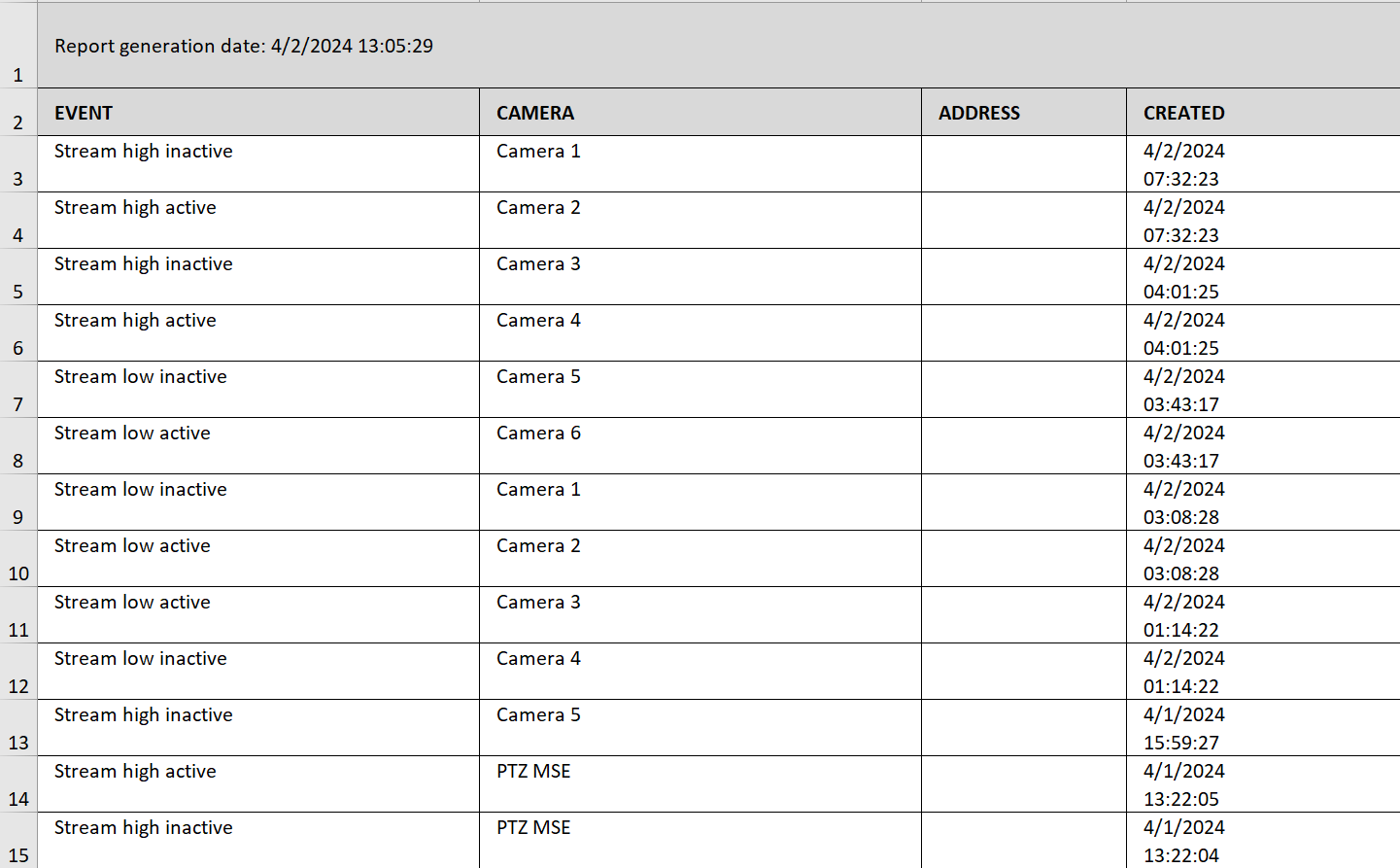
Reports can be generated for each event type and exported in .XLSX format, except for Analytics events. The generated report inherits all the filters set on the tab at the time of generation. If no filters are specified, the report will include all events of the selected type.
To generate a report, select Generate a report at the top right.
.png?cb=14a3629c23a17a315f53797c05a8b383)
In the opened window, complete the details where to save the report and confirm the action.
After initiating report generation, a corresponding message will be displayed.
.png?cb=fe5c94bb47d496fa2d6c5b2ff8efcb38)
Once the file is downloaded, a notification will appear with a link to navigate to the downloaded file on your device. For this, select Show in folder.
.png?cb=3c9bb39e02ae34d5d56e2a1934c7d569)
An example of a generated report.
Open events in a new window
The Open in new window function allows you to open the Events section with all tabs in a separate window.
To open the current section in a new window, in the Events section, select the Open in new window button at the top right.
.png?cb=2cd7a37f9e117feba3aa9bc5dd7010a6)
As a result, the entire Events section, including all its tabs, will open in a detached window. If a secondary monitor is connected, it will appear there. This new window will retain any filters currently applied in the main workspace.
You can open multiple detached windows with the Events section.
There is no synchronization between actions performed in the app workspace and its detached windows. Consequently, filter changes in a detached window will not be reflected in the main workspace, and vice versa.
Events update
The Refresh button is designed to manually update the list of events on the current tab.
.png?cb=62bfece508284a94fc00879fc7571f82)